
Introduction to the Dependency Map
The Dependency Map in ComplyCloud gives you a visual and structured overview of which systems, assets, and vendors your business depends on and how they are connected.
You can use the Dependency Map when you want to:
-
Get a complete visual overview of your IT landscape
-
Understand exactly which systems, assets, and processes are affected during an outage
-
Create a prioritized list of IT systems and vendors that need to be risk assessed
Start by navigating to: Mapping > Dependency Map.
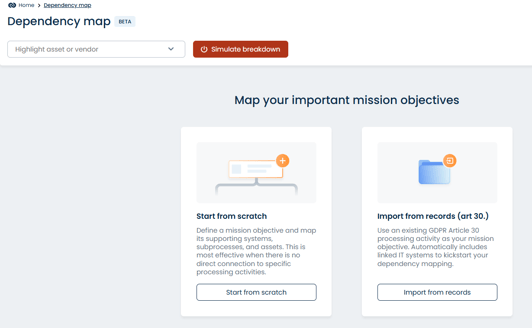
If this is your first time using the Dependency Map, you can choose either to start from scratch or import processes from your Record of Processing Activities as a baseline.
Note:
For the best possible start, we recommend creating the following beforehand:
-
IT systems
-
Assets
-
Vendors
Once they exist in your Mapping overview, you can select them directly inside the Dependency Map.
Build your Dependency Map
The Dependency Map consists of several layers:
Top layer: Business Goals
These are the most critical processes in your organization — for example:
“The SaaS platform must be available to customers.”
Tip: It is completely normal to have multiple business goals that systems and assets support.
Underlying layers: Systems and Assets
Below each business goal, you add all IT systems and assets that support it.
Here, you can create connections between systems and see how they impact one another.
Mapping dependencies
Start by adding a business goal and click the + icon underneath it to add IT systems or assets.
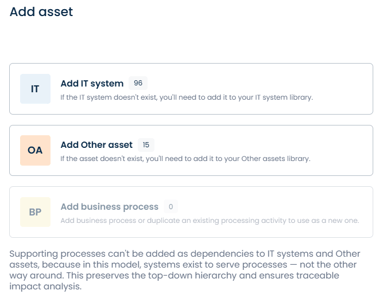
Any system or asset you have already mapped can now be selected as a dependency required to maintain the chosen business goal.
Setting criticality
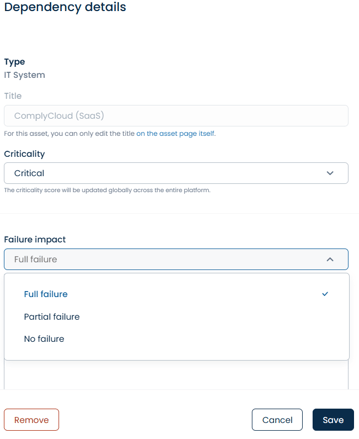
Criticality determines how important a system is and how it affects your business.
How to set it:
-
Click the system or asset you want to edit
-
Select Criticality
-
Choose the level (Full / Partial / No outage)
-
The change applies across the entire map and affects the simulation results
Simulating outages
Turn a system off to see the impact throughout the map:
-
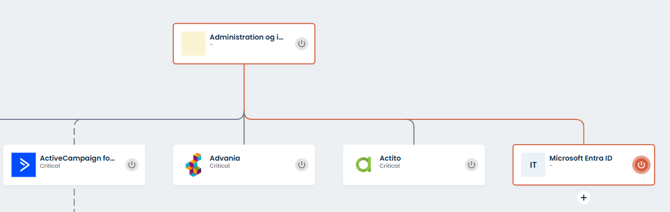
Red line: Upstream systems/processes go completely down
-
Yellow line: They are affected but can continue with reduced functionality
Use this to identify single points of failure and prioritize your security efforts.
In the example below, an outage in Microsoft Entra ID results in a full outage of Administration of the platform.
Vendor Impact
Use this view to test which systems depend on a specific vendor — and what happens if the vendor experiences an outage.
In the example below, Microsoft is selected as the vendor.
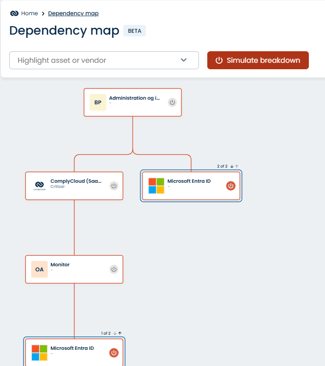
Note:
-
Arrows/lines point upwards = “If this system fails, it affects everything above it.”
-
Dependencies must therefore be interpreted bottom-up in relation to your business goals.