
General About Risk Management
ComplyCloud’s risk module allows you to assess the risk of your processing activities, systems, and assets all in one place. This gives you a comprehensive overview of your risk profile. When you click on the Risk and Security tab in ComplyCloud, you gain access to three menus:
-
Risk Assessment of Assets: Here you assess the risk for your systems, processing activities, and other assets. This is the area we will cover in detail in this article.
-
Risk scenarios: Here you can perform risk assessments of specific threat scenarios relevant to your company (for example, 'power outage')
- Risk settings: Here you can create a catalog of risks and security measures that you can use in your risk assessments.
-
Incident Management: Here you can document and follow up on security incidents.
Note: The Risk Scenario page will only be available if you have access to ComplyCloud’s ISMS solution.
How to Get Started
Add systems or processing activities:
Once you’ve added an IT system or a processing activity under Mapping, you can create a risk assessment under Risk Assessment of Assets by clicking Actions > Add Assets.
Choose your startingpoint
When you have added an IT system or a processing activity, you can choose whether to base your risk assessment on privacy or security.
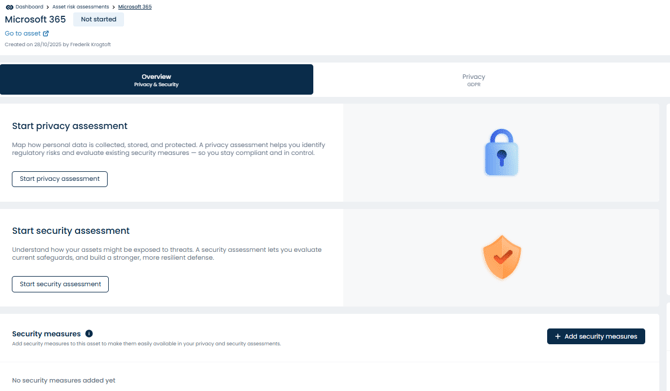
Tip: For example, if you work with GDPR, you should select Privacy, and if you work with IT security, you should select Security.
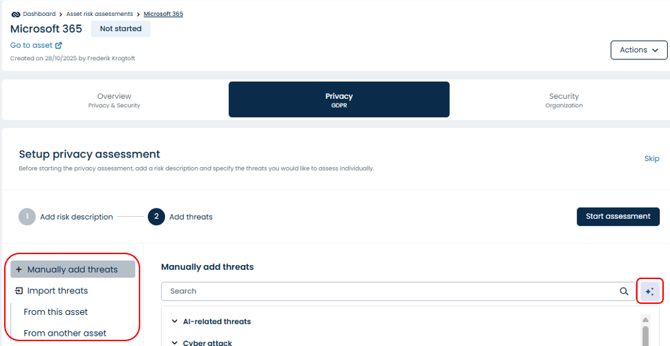
In the initial part of the risk assessment, you can add general threats to the asset, which you can later use to perform risk assessments at the threat level. You can:
-
Add threats manually
-
Let AI suggest threats
-
Copy threats “From this asset”: If you have already performed a risk assessment for either Privacy or Security, you can copy the threats from there
-
Copy threats “From another asset”: If you have already completed a risk assessment for another asset, you can copy the threats directly from that asset
Perform Your Risk Assessments
For each of your assets, you can add all the threats you consider relevant by clicking Add threats. Here, you should assign risk scores, add security measures, and define a residual risk for each of the selected threat.
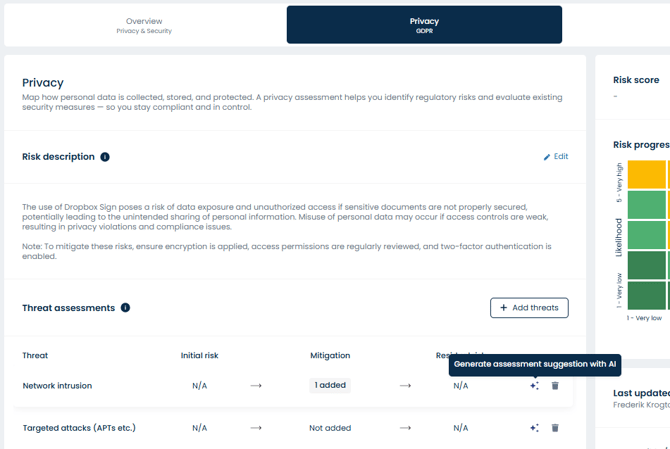
Note: If you’ve enabled CIA under Risk Settings, you must rate your score based on Confidentiality, Integrity, and Availability (as shown above) The highest score among the three will automatically be used as your consequence score.
You can also let AI do each threat assessment for you: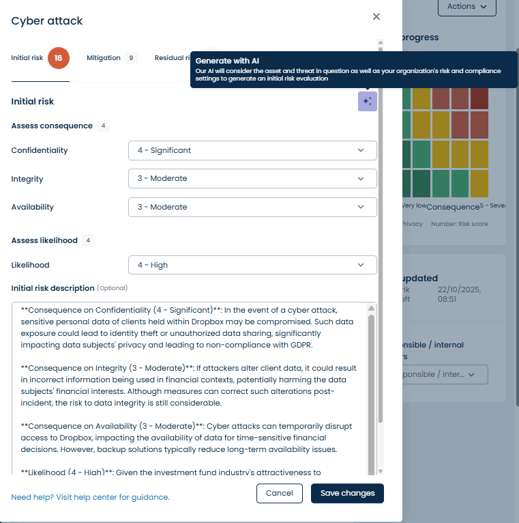
Note: The AI feature can help you create your risk assessments faster. While it can save time, we recommend using the AI suggestions with caution and always reviewing them before applying them in your risk assessments.
Repeat the process for all threats to achieve a complete, documented risk assessment. Once you have carried out a threat assessment for each of the selected threats, you will have an overview of the overall risk of the asset or processing activity.

Note: The threat with the highest risk score will be considered the asset’s overall risk score.
Risk Settings
Here you can make it easier and more efficient to work with risk management. You can:
-
Enable CIA, so the same method is used to assess threats across all risk assessments.
-
Add security measures that can be used by the entire organization during the risk assessment process.
-
Add threats to a threat catalog that can be reused across your risk assessments.
Tip: The CIA framework stands for Confidentiality, Integrity, and Availability—three core principles of information security that focus on protecting data. Enable this if you want to follow best practices.
Versioning and Approval of Risk Assessments
You can benefit from sending a risk assessment for review. Once approved, the risk assessment is saved as a new version under History.
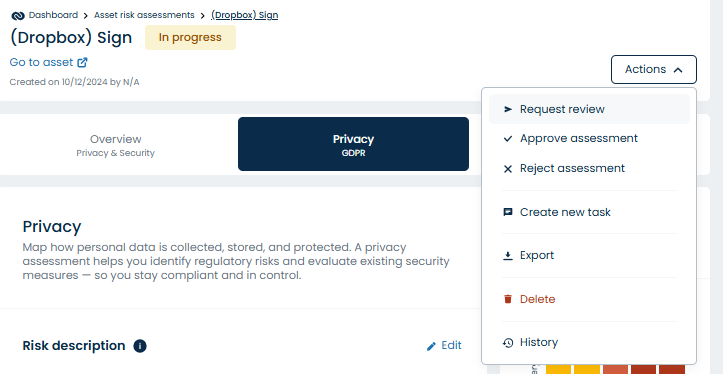
Adding approvers to review assessments will notify them via e-mail and create a task for them. All changes to your risk assessments are saved with complete historical records over time.
Tip:
-
Start with your most critical assets.
-
Repeat assessments regularly to ensure up-to-date risk management.